


Gate Web3 Versão Web:
https://www.gate.com/web3
Gate Web3 Wallet Versão Extensão:
https://chrome.google.com/webstore/detail/gate-wallet/cpmkedoipcpimgecpmgpldfpohjplkpp
Gate Web3 Wallet Versão App:
https://www.gate.com/mobileapp
1. Como instalar a extensão?
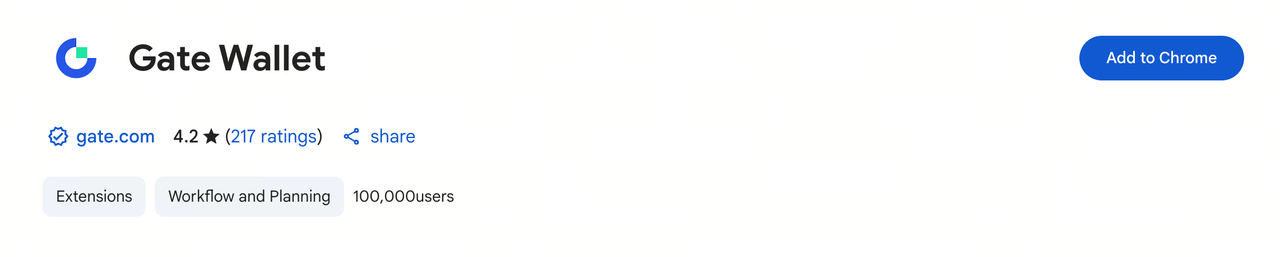
Clique neste link para acessar a página da Chrome Web Store e instalar a extensão Gate Web3 Wallet. Conforme mostrado abaixo, clique no botão "Adicionar ao Chrome" no lado direito da página.
2. Como depositar na extensão Gate Web3 Wallet?
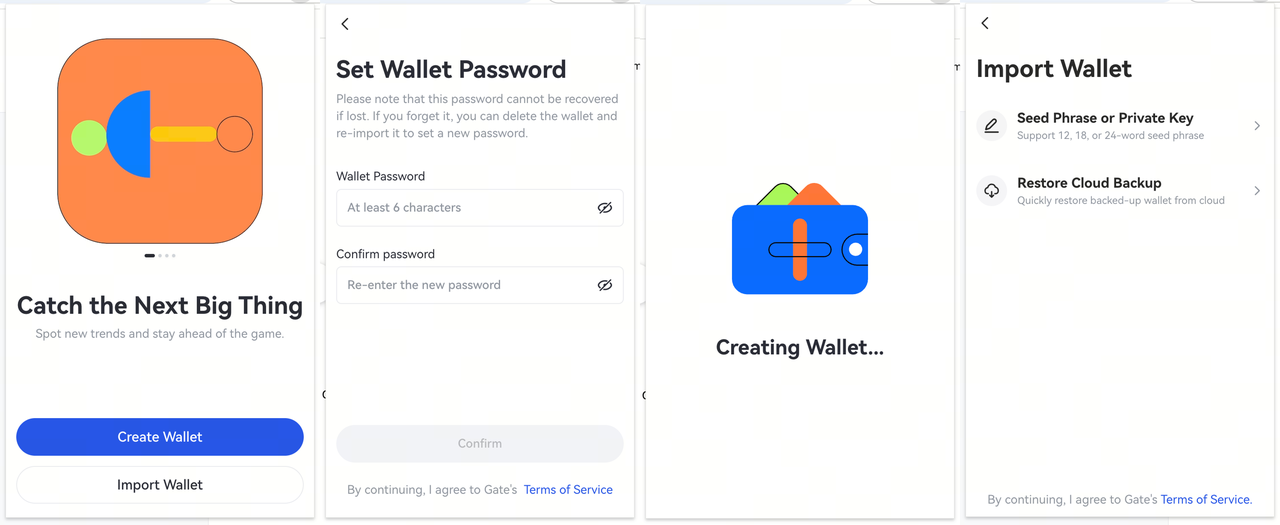
Passo 1: Crie, Importe ou Restaure Backup em Nuvem da Gate Web3 Wallet
Abra a extensão Gate Web3 Wallet e selecione "Criar Carteira". Digite sua senha para criar uma nova carteira. Se você já possui uma carteira, selecione "Importar Carteira" e insira sua frase mnemônica ou chave privada para importar. Caso já tenha feito backup da sua carteira na nuvem pelo aplicativo Gate, clique em [Restaurar Backup em Nuvem] e insira sua senha para recuperar sua carteira.
Observação: Mantenha sua senha e frase mnemônica em segurança. Não armazenamos sua senha ou frase mnemônica e, caso sejam perdidas, seus ativos não poderão ser recuperados.
Passo 2: Acesse a página inicial da extensão e clique em [Receber]
Clique no botão "Receber" na interface da extensão, selecione o token e a rede que deseja receber, copie o endereço de recebimento e cole na página onde está iniciando a transferência.
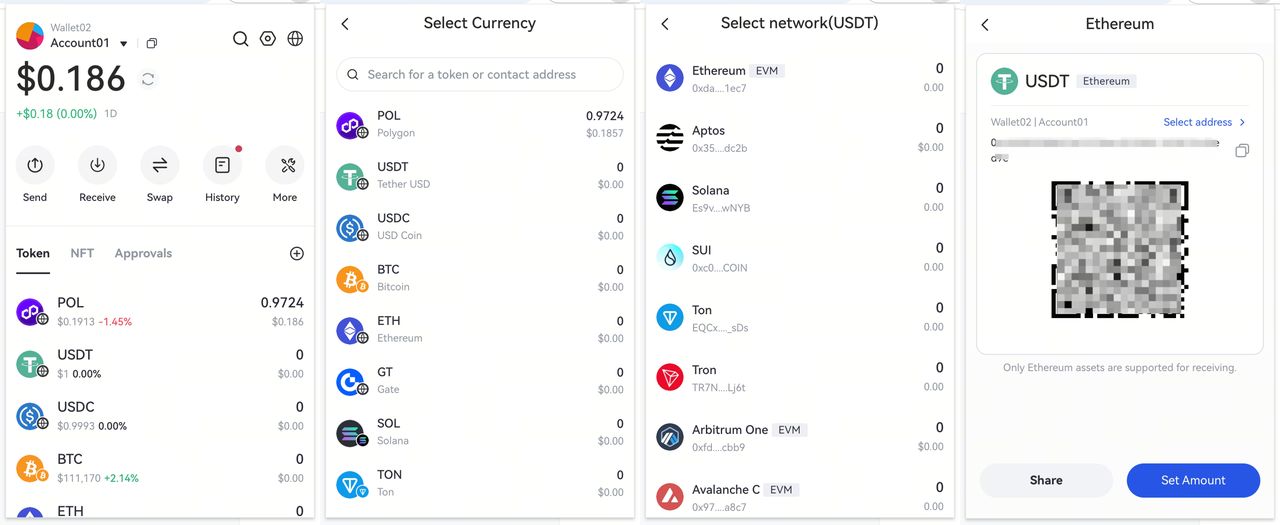
Após concluir a operação, você pode visualizar o status da transação em [Histórico] na página inicial da extensão.
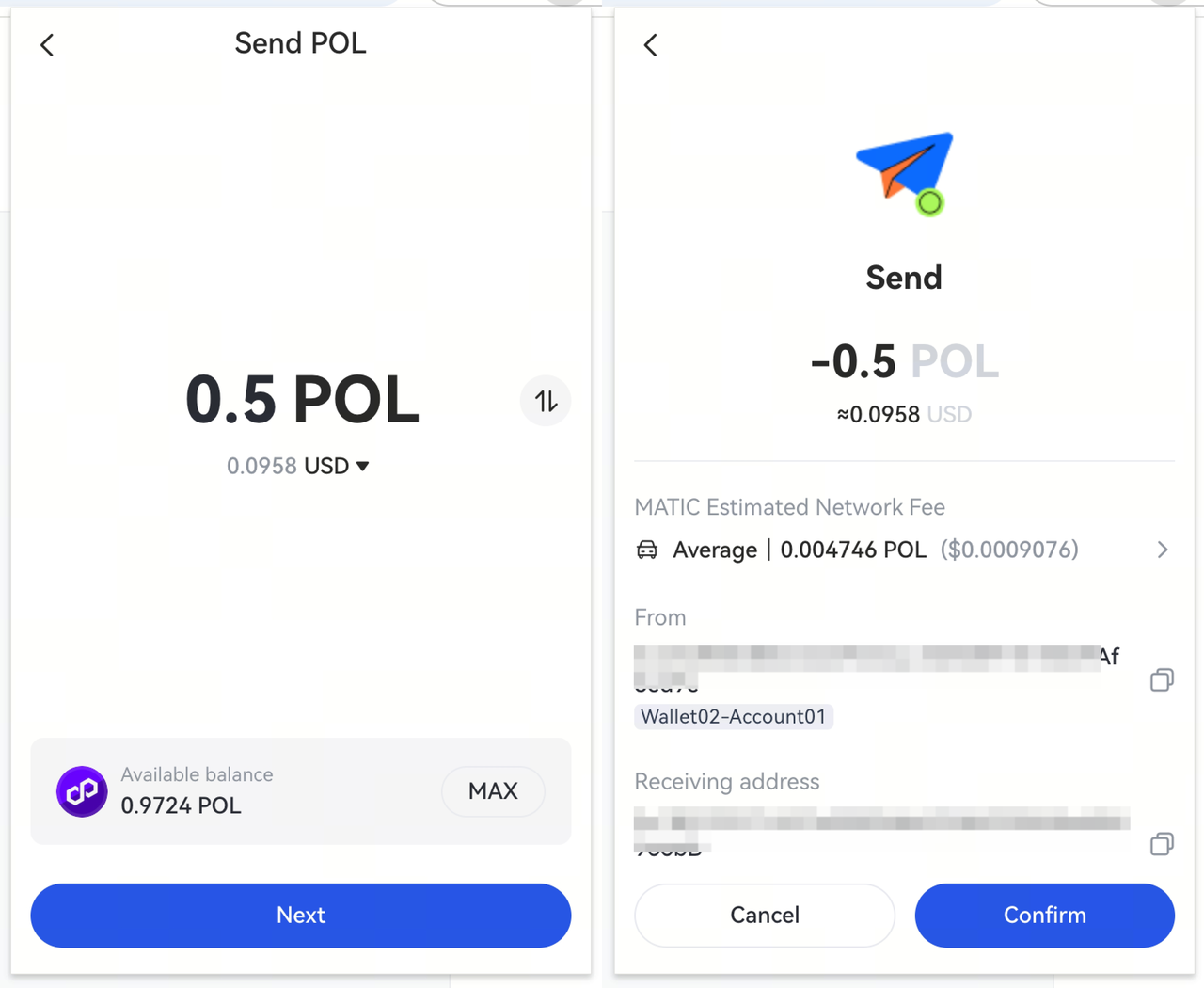
3. Como enviar tokens usando a extensão Gate Web3 Wallet?
Clique no botão "Enviar" na interface da extensão, selecione o token que deseja transferir e insira o endereço do destinatário. Digite a quantidade de tokens a ser enviada e, após confirmar que o valor, o endereço da carteira e a taxa de gás estão corretos, clique em [Confirmar] para prosseguir.
- Antes de iniciar uma transferência, certifique-se de que possui tokens suficientes na rede para cobrir a taxa de gás.
-
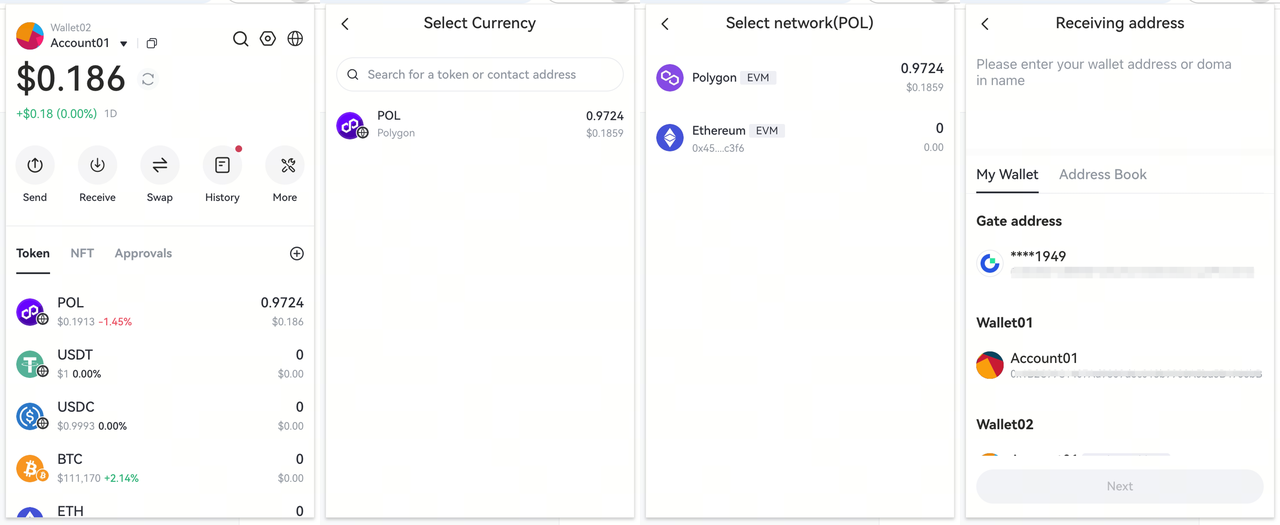
Clique em [Enviar] na página inicial da extensão da carteira, depois selecione o token, a rede e o endereço do destinatário para sua transferência.
-
Na página de envio, insira a quantidade de tokens que deseja enviar e clique em [Próximo]. Após revisar o valor, o endereço e a taxa de gás, clique em [Confirmar].
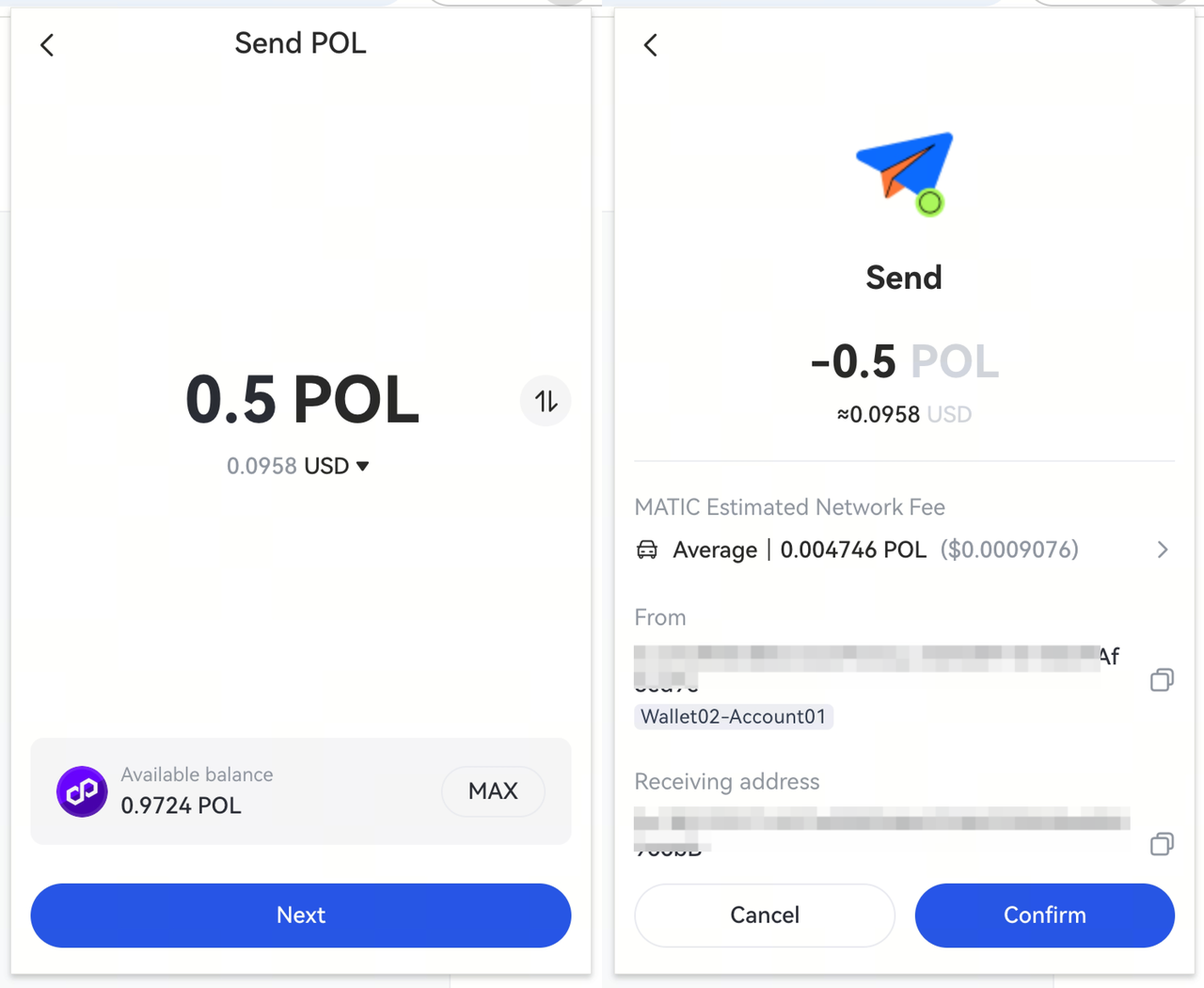
Se você tiver saldo suficiente do token e digitar a senha correta, sua transação passará para o status de confirmação pendente.
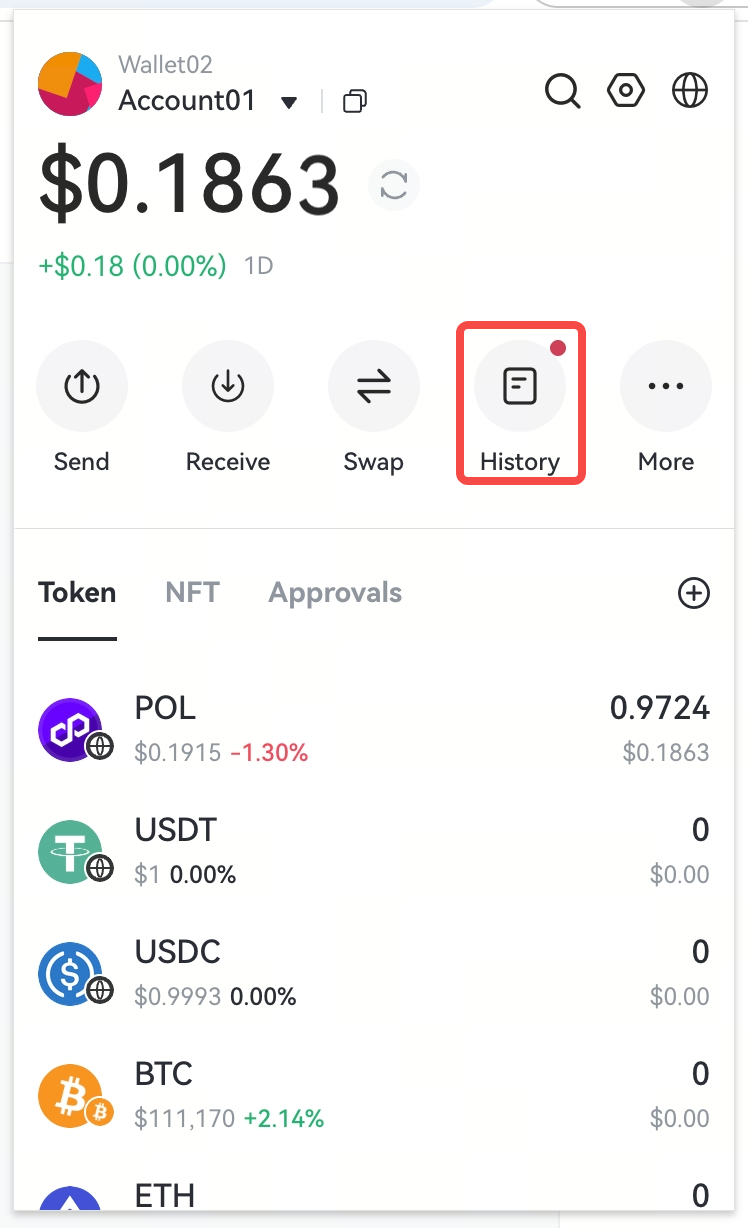
Após concluir a operação, você pode visualizar o status da transação em [Histórico] na página inicial da extensão.
O conteúdo aqui fornecido é apenas para fins de referência e educacionais e não constitui qualquer conselho financeiro, de investimento, de negociação ou jurídico, nem constitui uma oferta ou solicitação para comprar ou vender quaisquer ativos digitais. A Gate não faz representações ou garantias expressas ou implícitas em relação à precisão, integridade ou atualidade das informações aqui contidas. Recursos, interfaces, regras e estruturas de taxas dos produtos podem ser atualizados ou ajustados a qualquer momento. Consulte os anúncios mais recentes e as informações reais exibidas na plataforma Gate para obter os detalhes mais precisos.
Os investimentos em ativos digitais envolvem riscos significativos e os preços podem flutuar substancialmente. Você pode perder o valor total do seu investimento. Tome decisões com cautela, com base em sua própria situação financeira e tolerância ao risco, após compreender totalmente os riscos associados. Se necessário, recomenda-se consultar um consultor financeiro ou jurídico profissional independente.
Para mais informações sobre possíveis riscos, consulte a Divulgação de Riscos e o Termo de Acordo do Usuário da Gate.
