


Universal Skills Installation Method (Recommended)
# Check if the package manager tool npx is installed. If not, refer to the appendix documentation.
npx -v
# 11.8.0 If a version number is returned, npx is already installed.

# Use the spacebar to select and install skills
npx skills add https://github.com/gate/gate-skills

# Specify installation of the gate-market skill
npx skills add https://github.com/gate/gate-skills --skill gate-market
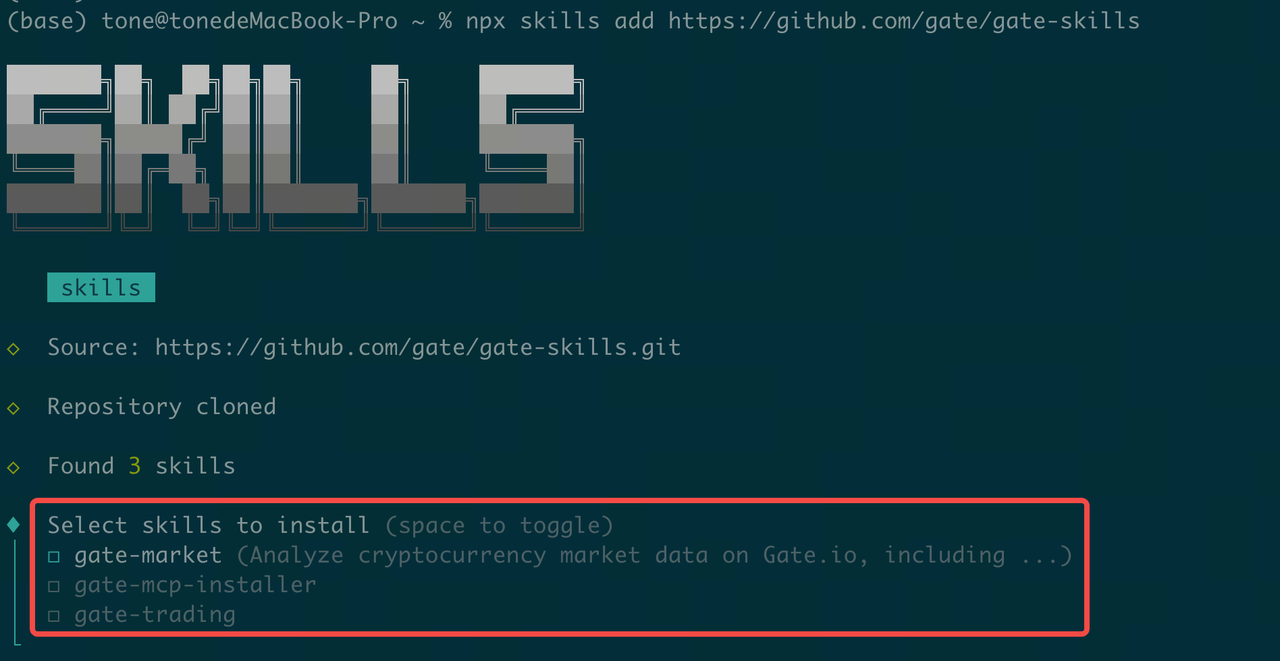
Use the spacebar and arrow keys to select the skills you want to install (recommended to select all).
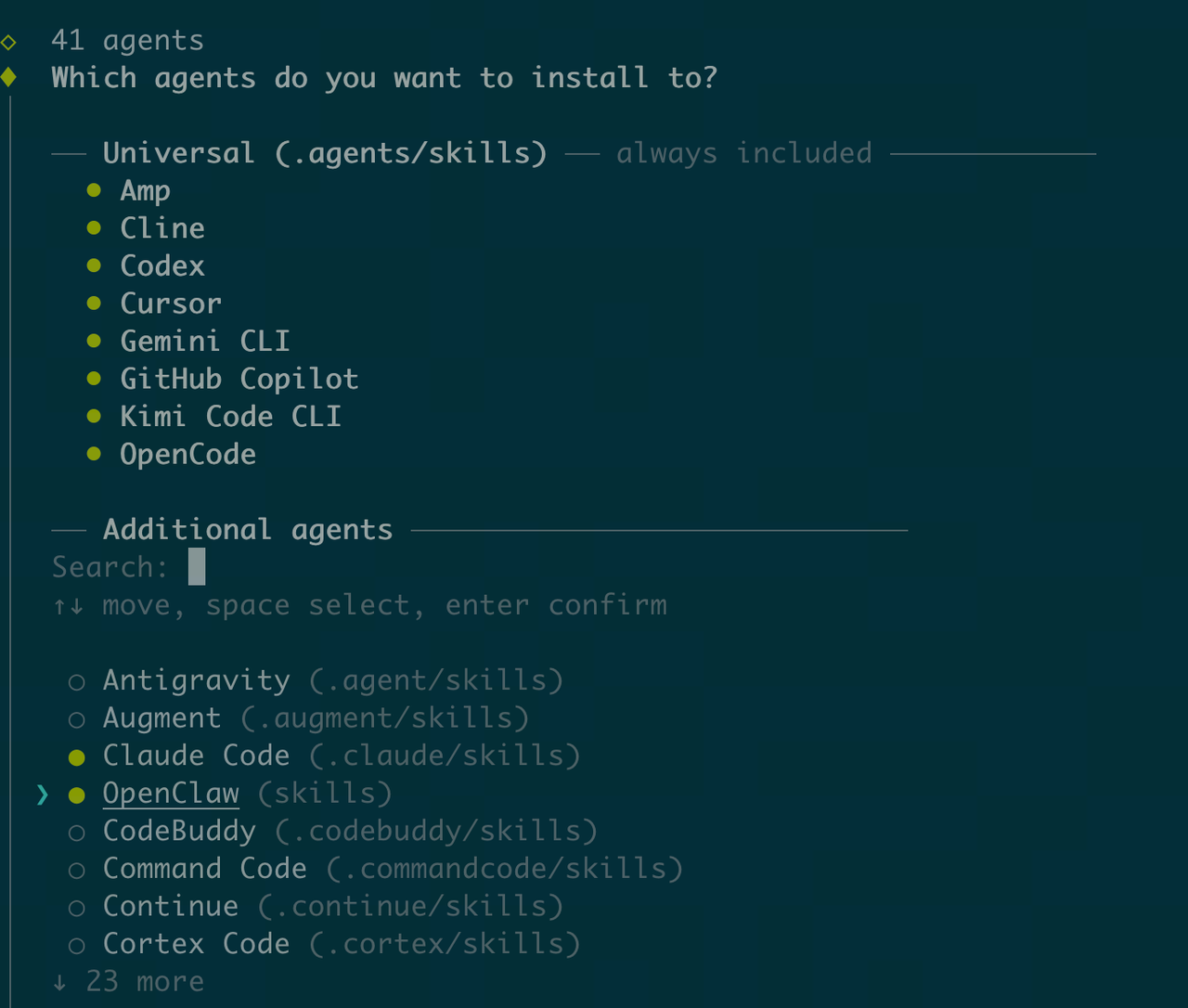
Installing Skills with Claude CLI
Option 1: Natural Language Installation (Recommended)
help me auto install Gate Skills:https://github.com/gate/gate-skills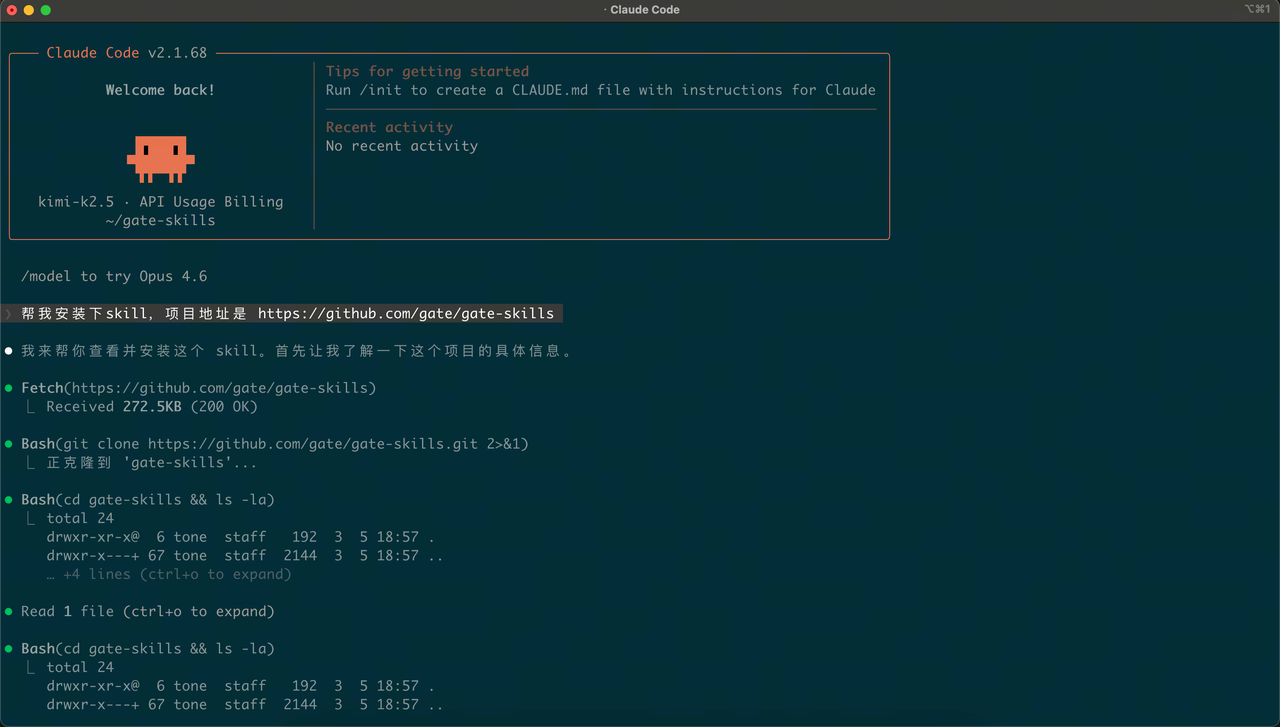
Option 2: Manual Installation
Step 1: Download the Skills package from GitHub: https://github.com/gate/gate-skills
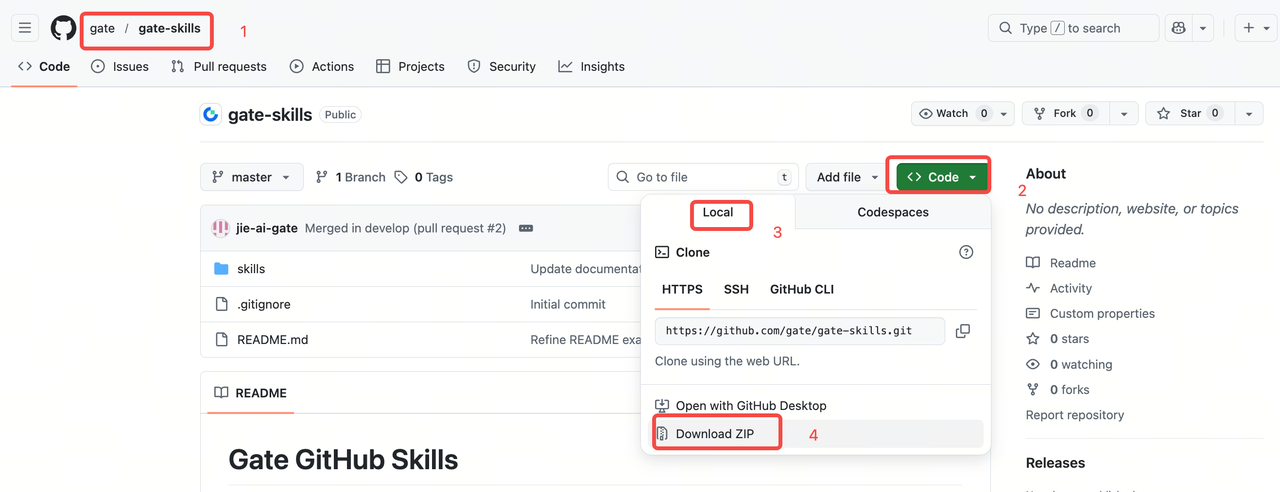
Step 2: Double-click to extract the compressed package, then copy it to the ~/.claude/skills/ directory
(1) Open the hidden folder directory
Go to your user directory, then press Command+Shift+Period [CMD+Shift+.]. (Tip: Using this shortcut again will re-hide the folder.)
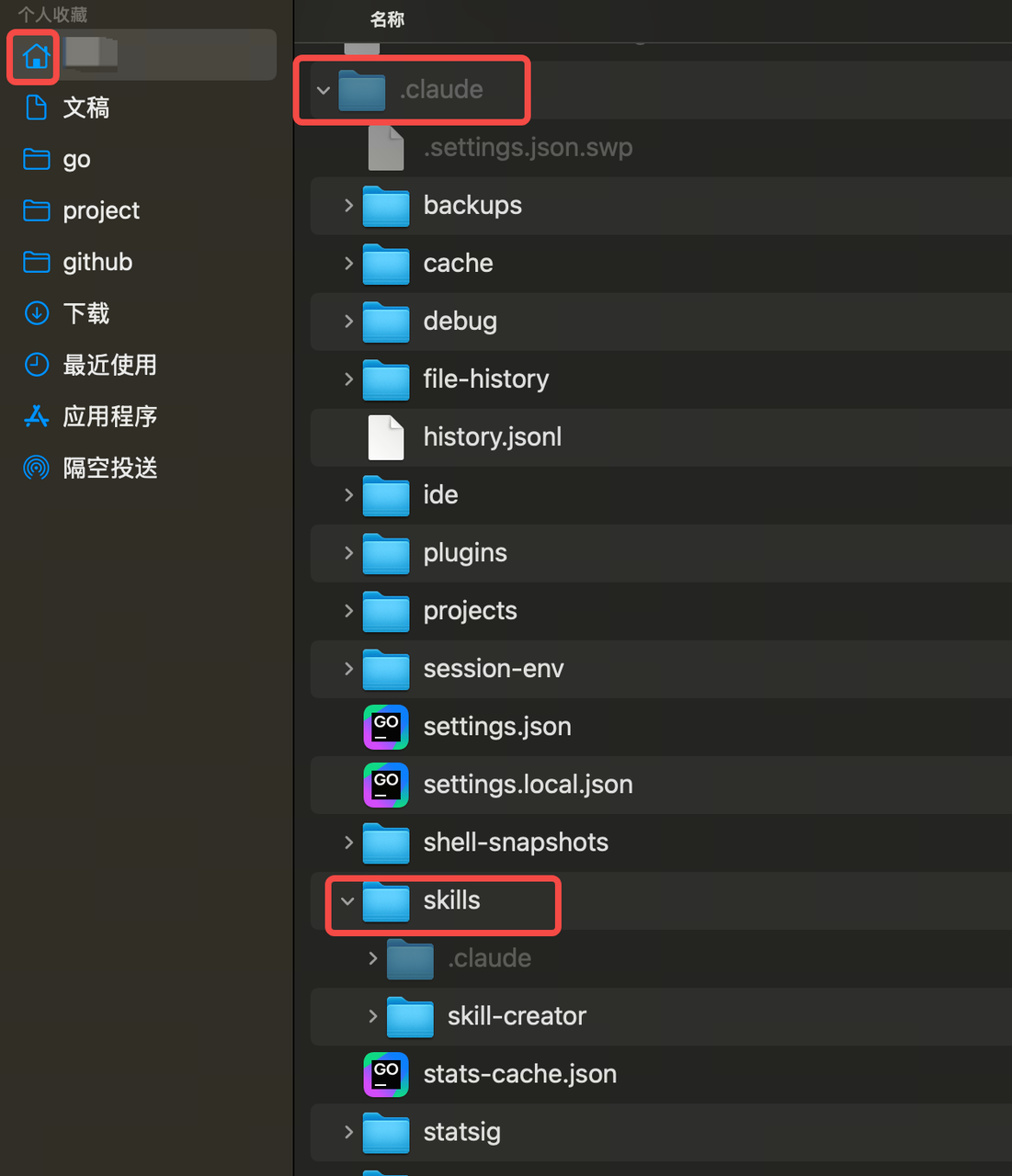
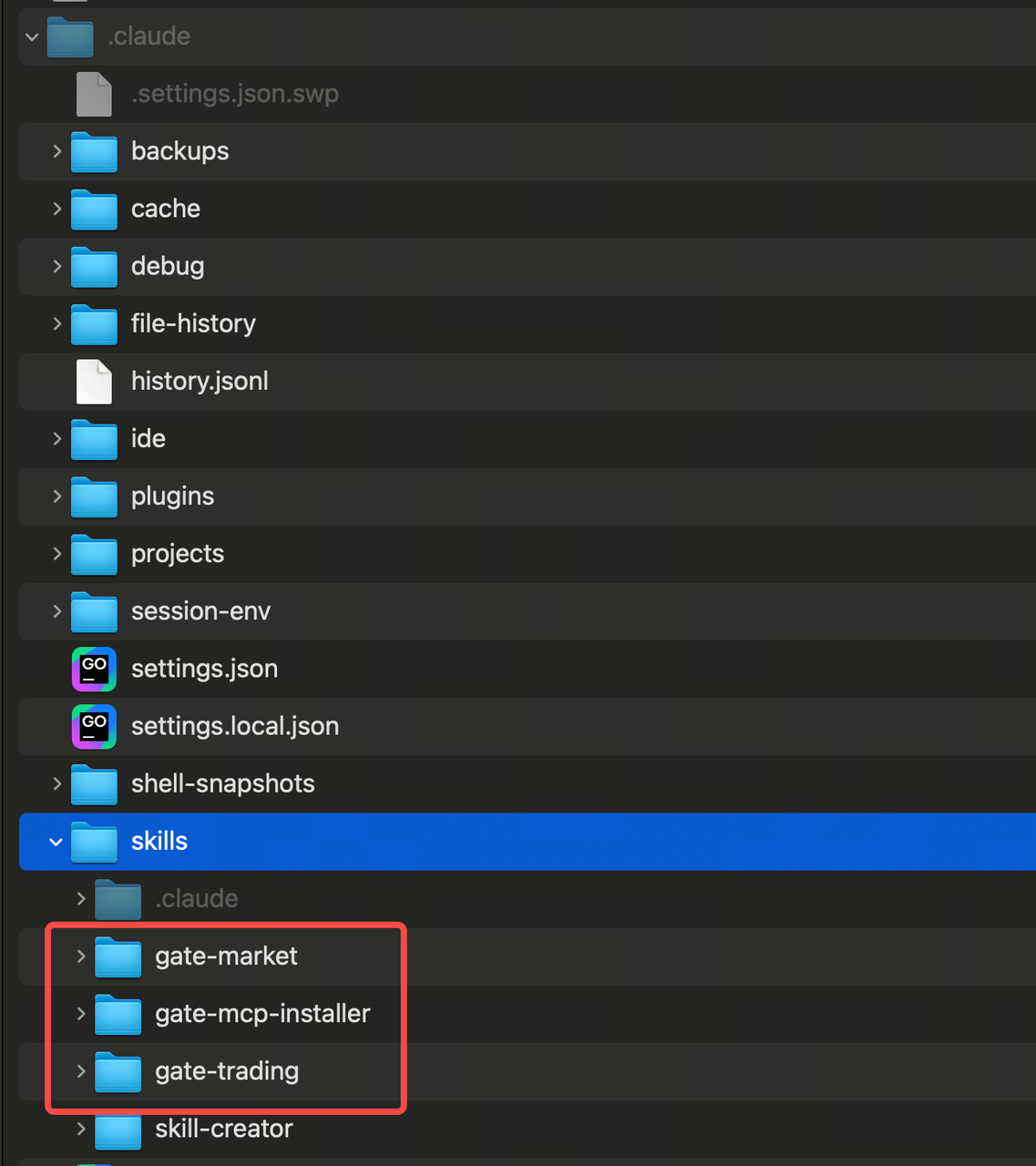
(2) Copy the folder into the directory
Locate the ~/.claude/skills directory, then copy the extracted package folder into it. Copy the subdirectory skills from gate-skills-master into the current directory.
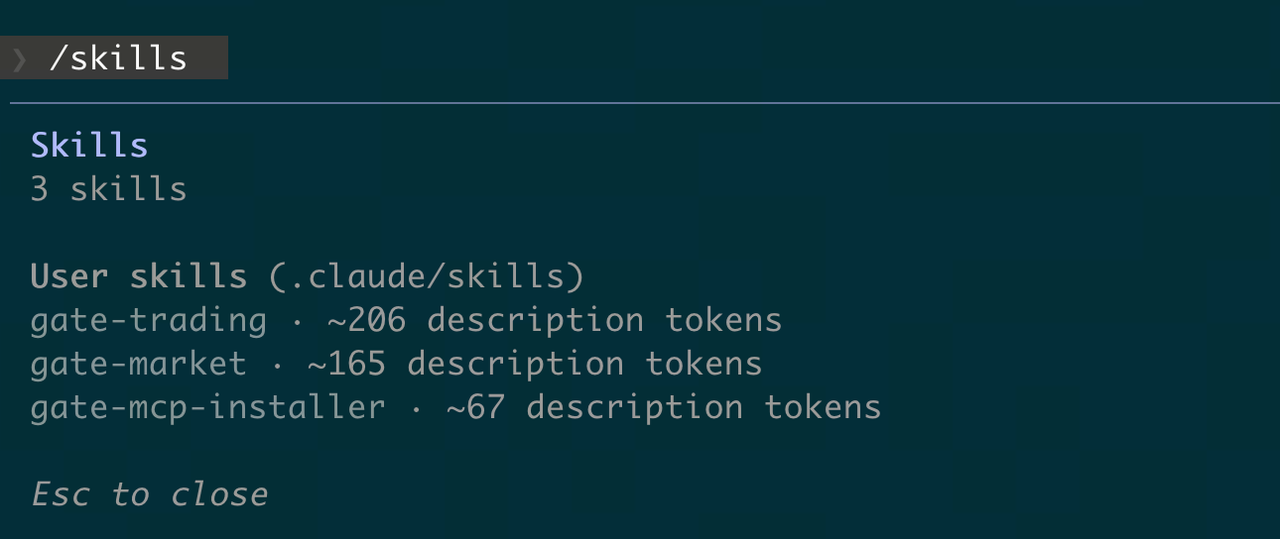
(3) Verify installation. In the Claude command line, enter /skills or ask Claude: how many skills have I installed?
Installing Skills with Codex CLI
Option 1: Natural Language Installation (Recommended)
help me auto install Gate Skills:https://github.com/gate/gate-skills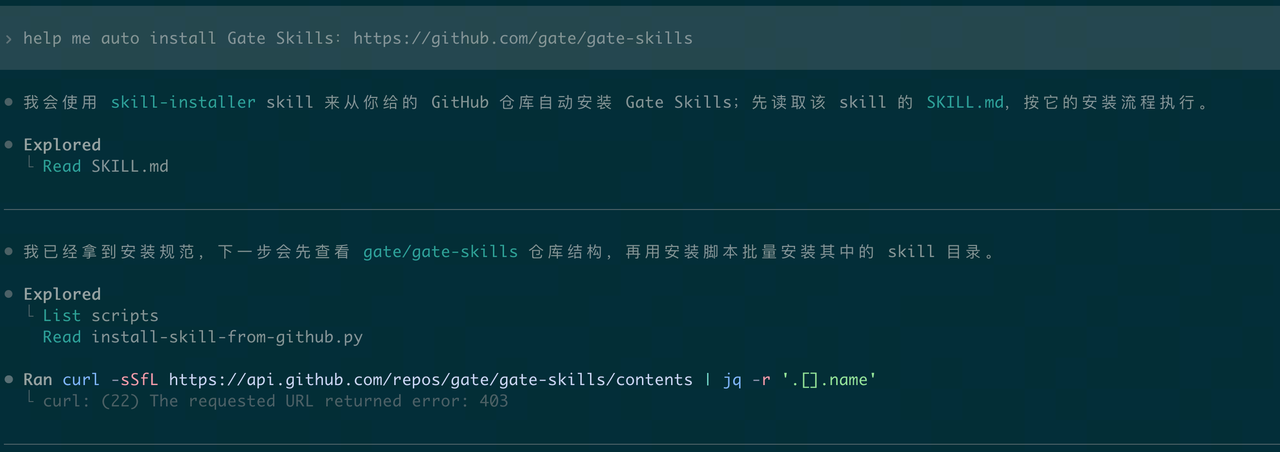
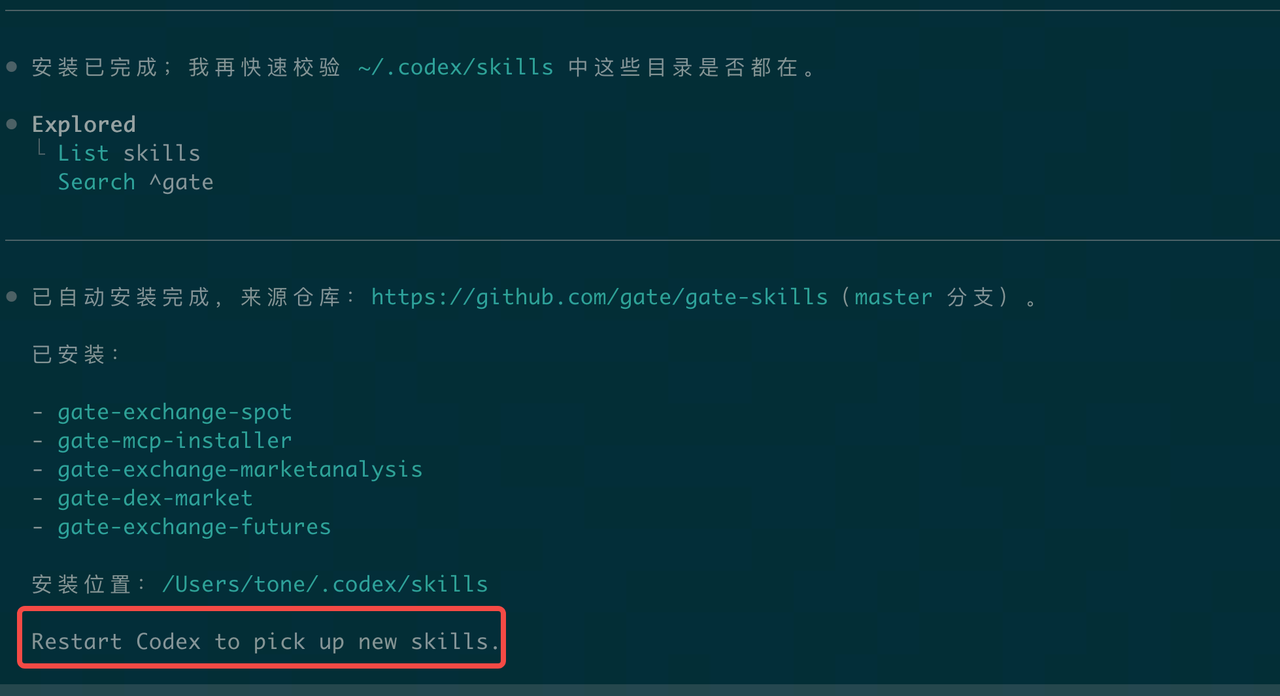
Takes effect after restarting Codex
Option 2: Terminal Installation
(1) In the terminal, enter /skills, select 1. List skills, choose Skill Installer, and enter https://github.com/gate/gate-skills
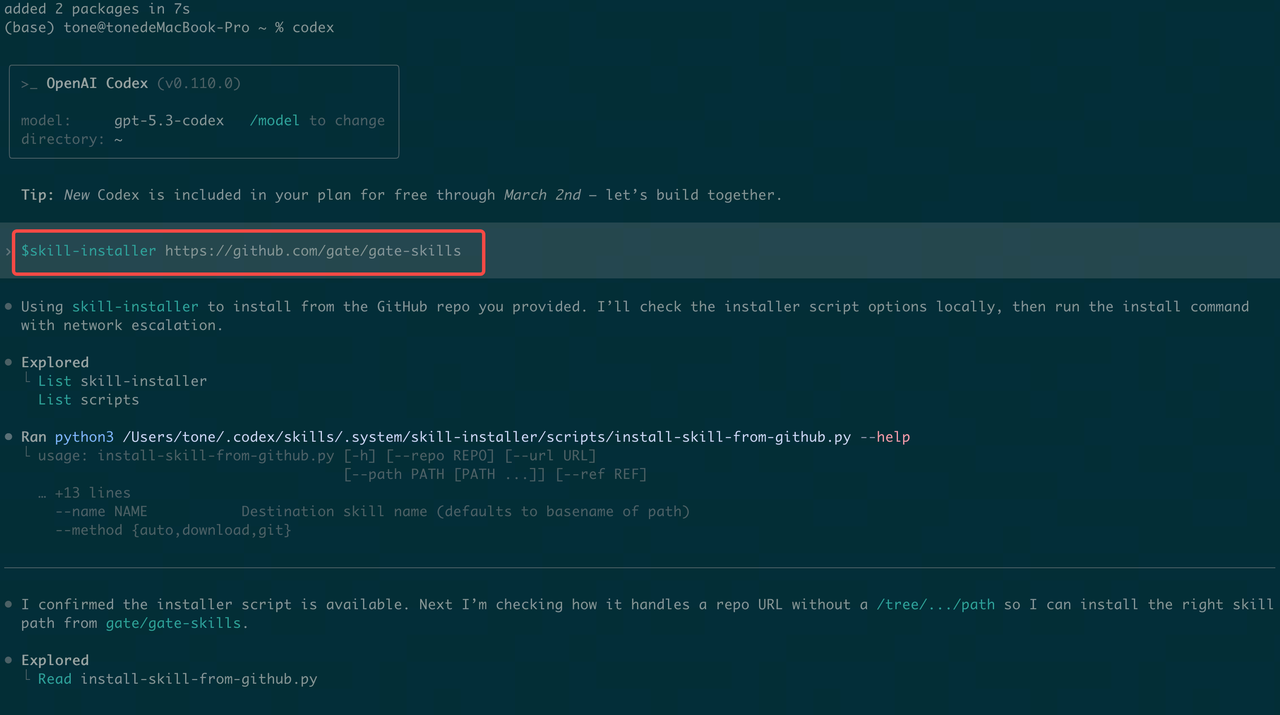
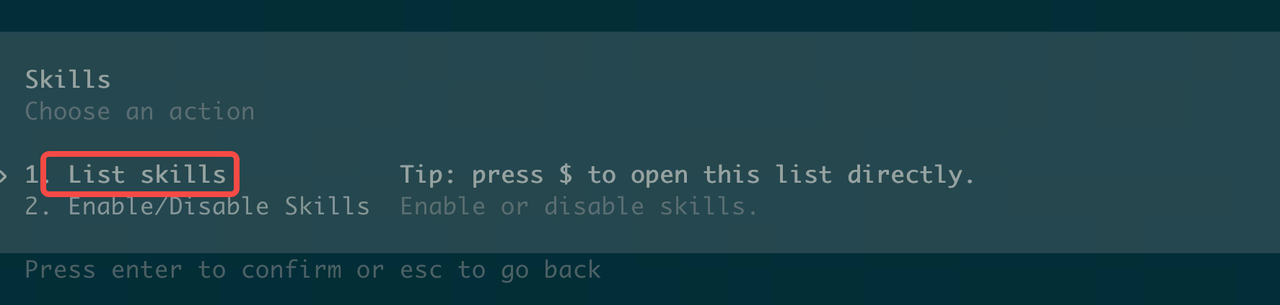
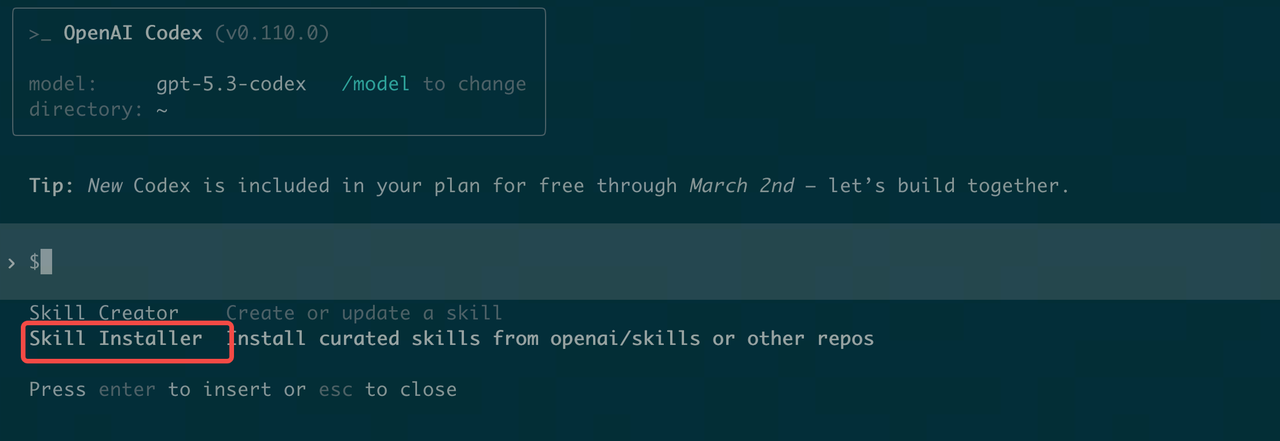
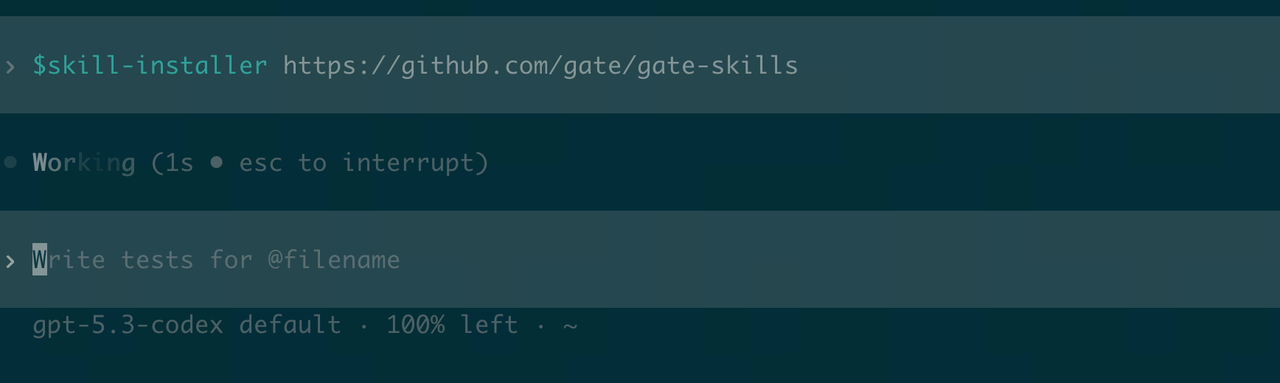
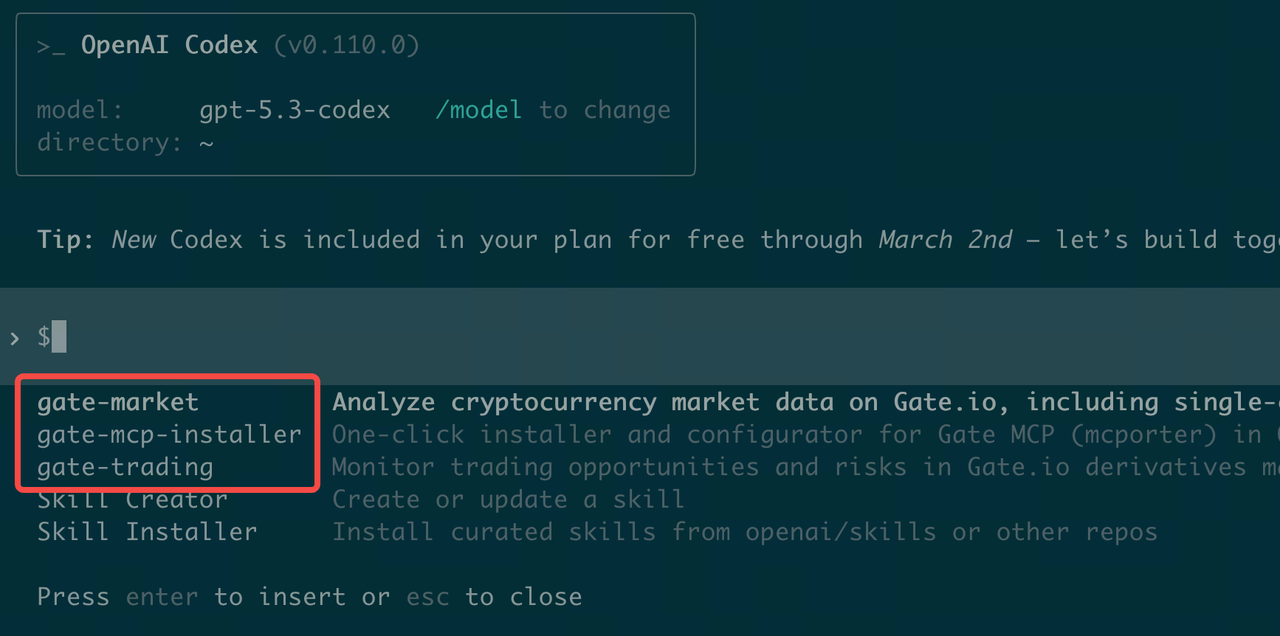
(2) Verify installation. Restart your terminal and enter /skills -> List Skills
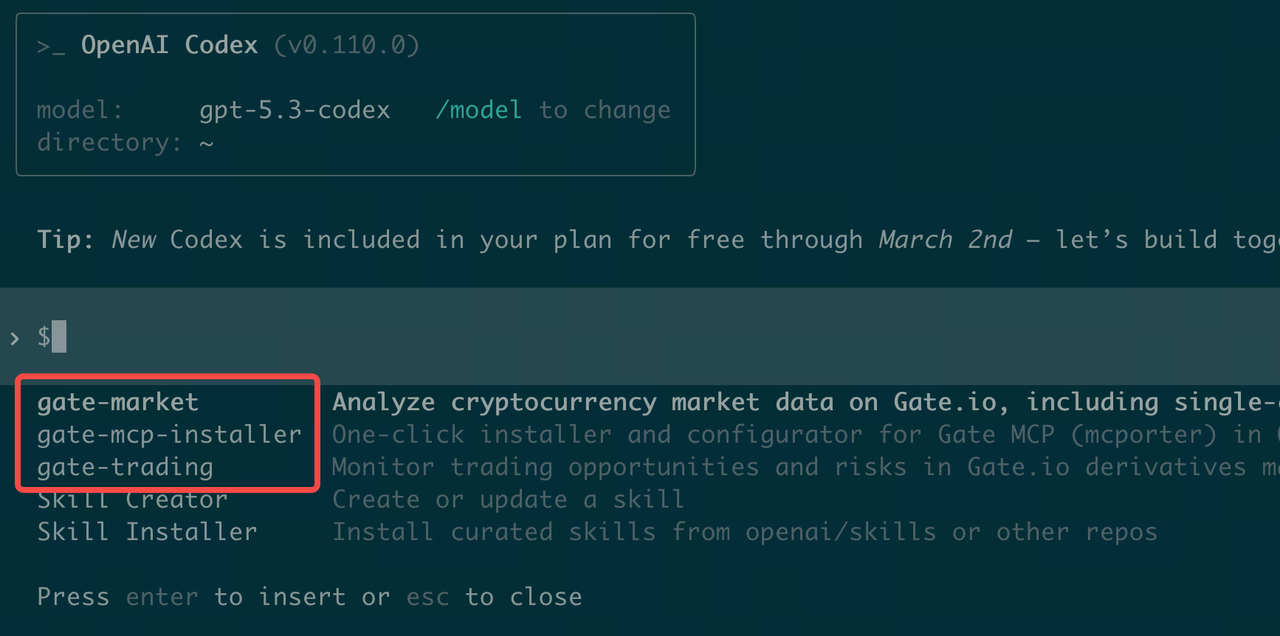
Option 3: Manual Installation
Step 1: Download the Skills package from GitHub: https://github.com/gate/gate-skills
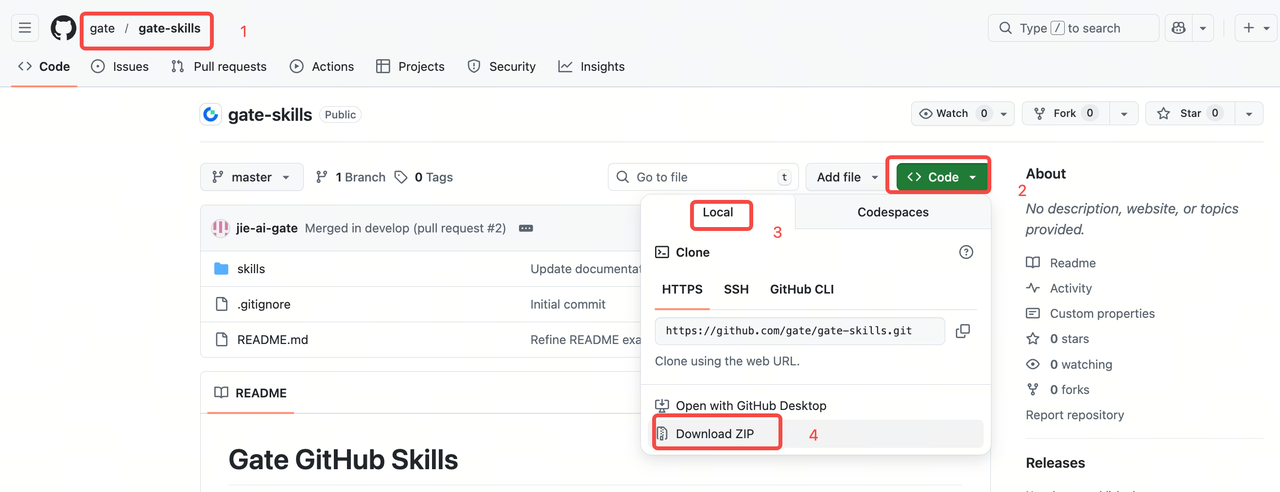
Step 2: Double-click to extract the compressed package, then copy it to the ~/ .codex/skills/ directory
(1) Open the hidden folder directory
Go to your user directory, then press Command+Shift+Period [CMD+Shift+.]. (Tip: Using this shortcut again will re-hide the folder.)
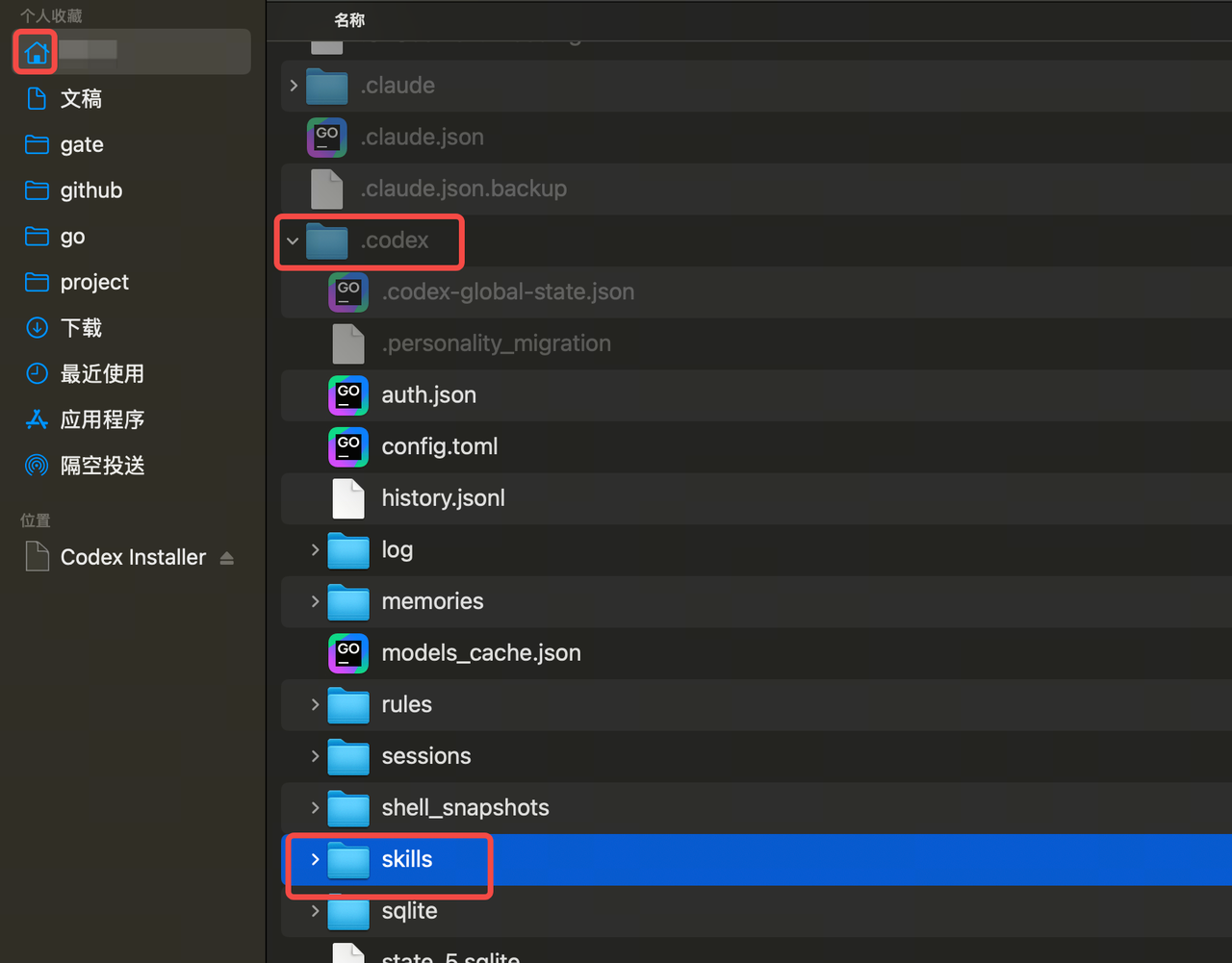
(2) Copy the folder into the specified directory
Find the ~/.codex/skills directory and copy all subdirectories from skills in gate-skills-master into the current directory.
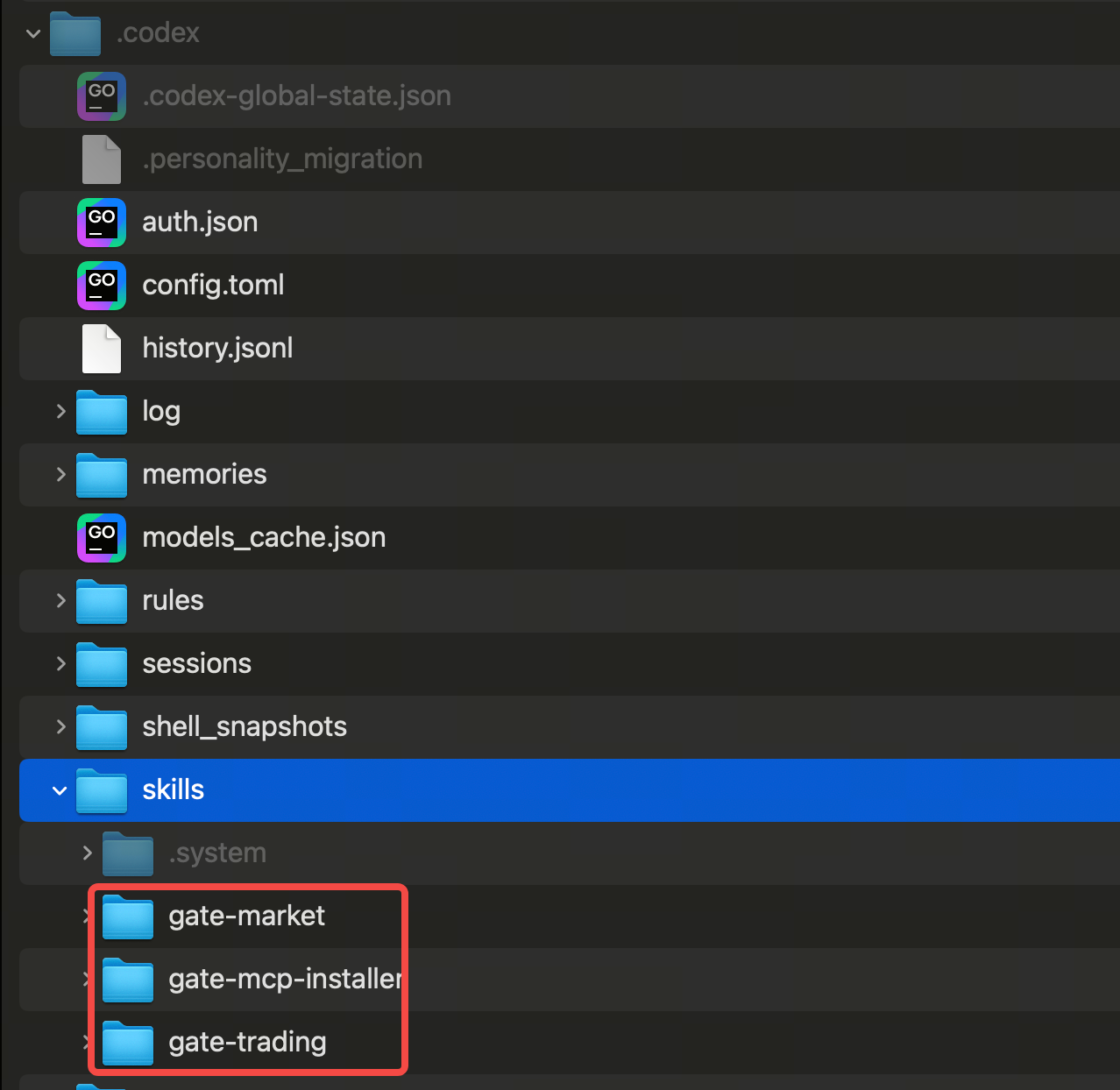
(3) Verify installation. Restart your terminal and enter /skills -> List Skills
Installing Skills with OpenClaw
Option 1: Direct Installation via Chat (Recommended)
In the OpenClaw chat interface (such as Telegram, Feishu, etc.), simply send the GitHub link to the AI assistant, for example:
help me auto install Gate Skills:https://github.com/gate/gate-skills
The assistant will automatically pull the code, configure the environment, and attempt to load the skill.
Option 2: Automatic Installation Using ClawHub (Recommended)
-
Official Marketplace (requires npx pre-installed; see appendix for npx installation)
npx clawhub@latest install gate-skills -
GitHub Repository
npx clawhub@latest add https://github.com/gate/gate-skills
Option 3: Manual Installation
Step 1: Download the Skills package from GitHub: https://github.com/gate/gate-skills
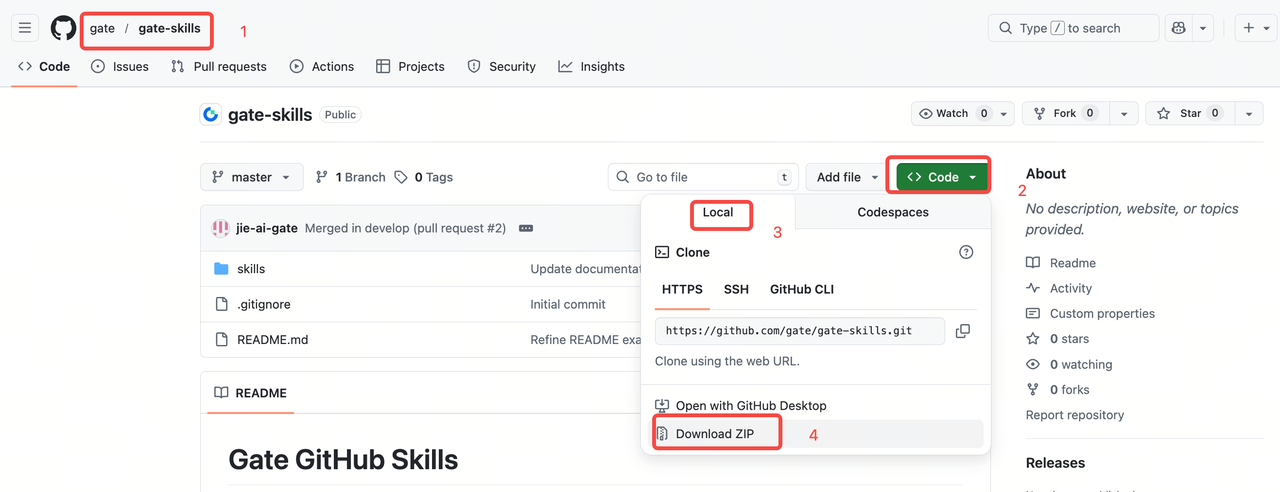
Step 2: Double-click to extract the compressed package, then copy it to the ~/ .openclaw/skills/ directory
(1) Open the hidden folder directory
Go to your user directory, then press Command+Shift+Period [CMD+Shift+.]. (Tip: Using this shortcut again will re-hide the folder.)
(2) Copy the folder into the specified directory
Find the ~/.openclaw/skills directory and copy all subdirectories from skills in gate-skills-master into the current directory.
Step 3: Restart OpenClaw Gateway
Option 4: Direct Installation via Chat
In the OpenClaw chat interface (such as Telegram, Feishu, etc.), simply send the GitHub link to the AI assistant, e.g., "Help me install this skill: https://github.com/gate/gate-skills"
The assistant will automatically pull the code, configure the environment, and attempt to load the skill.
Appendix: Installing the npx Package Manager Tool (Mac Version)
# Check if the package manager tool npx is installed. If restricted:
npx -v
# 11.8.0 If a version is returned, npx is installed

# If not installed (Mac computer)
# Option 1: Install with Homebrew
## Install Homebrew - Official (Recommended)
/bin/bash -c "$(curl -fsSL https://raw.githubusercontent.com/Homebrew/install/HEAD/install.sh)"
## Install Homebrew - China Mirror
/bin/zsh -c "$(curl -fsSL https://gitee.com/cunkai/HomebrewCN/raw/master/Homebrew.sh)"

## Verify Homebrew installation
brew --version
# Homebrew 5.0.16 If a version number is displayed, installation succeeded

## Install npx support
brew install node

# Enter npx -v to verify
npx -v

# Option 2: Official website installation
## Install nodejs by downloading the appropriate installer
https://nodejs.org/en/download