


Applicable Scope
This guide applies to Gate Web email settings
Before you start: Have access to your email account (this guide uses Gmail as an example)
Estimated time: 3 m
Objective
This guide will walk you through how to add Gate's official email addresses to your email whitelist to ensure successful delivery of verification emails on Gate Web.
Steps
Step 1: Identify Gate's Official Email Addresses
Add the following Gate official email addresses to your whitelist:
- support@promo.gate.com
- support@send.gate.com
- support@sending.gate.com
Step 2: Access Gmail Settings
- Log in to your Gmail account.
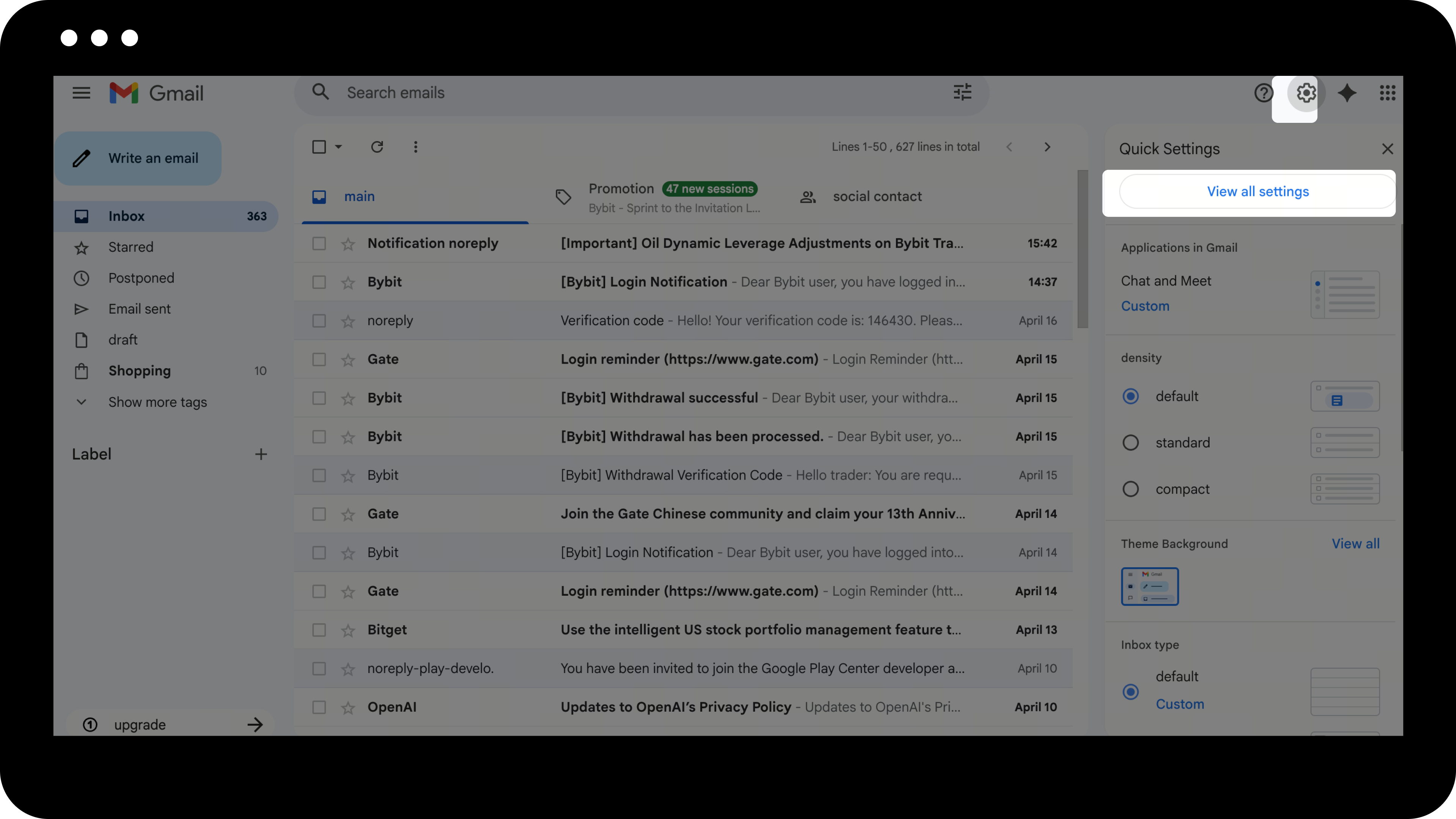
- Click the Settings icon in the upper-right corner.
- Select "See all settings".
Step 3: Create a New Filter
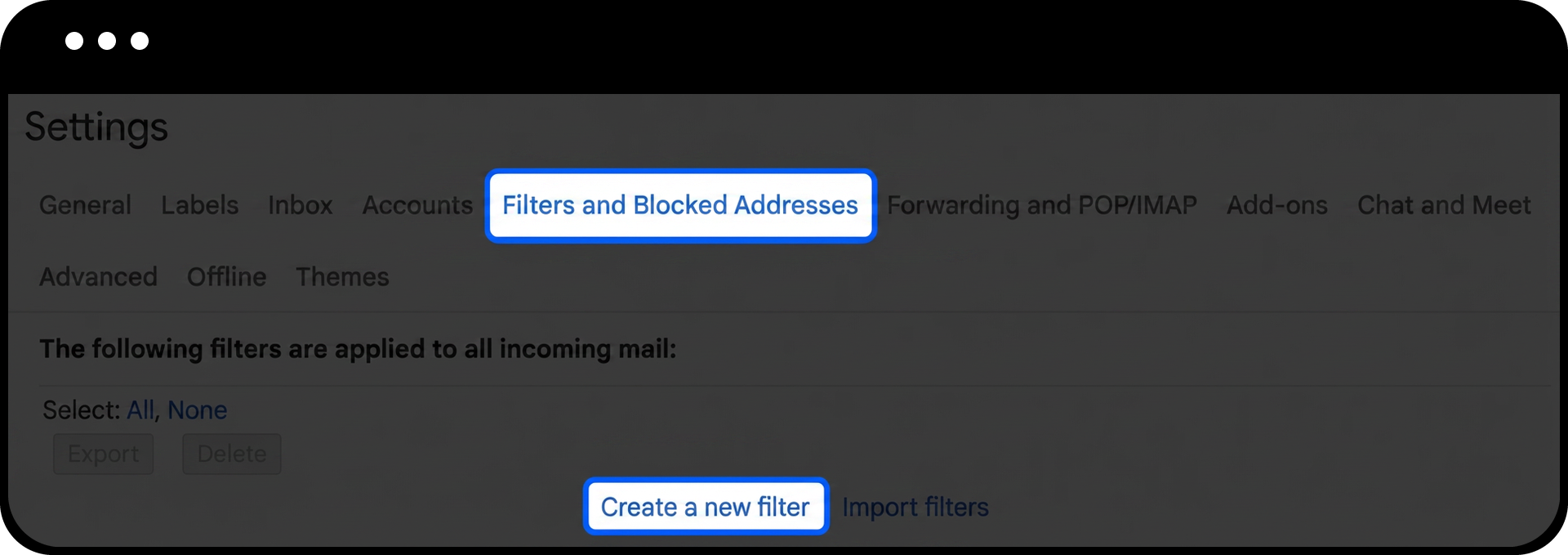
- Navigate to the "Filters and Blocked Addresses" tab.
- Click "Create a new filter".
Step 4: Configure the Filter
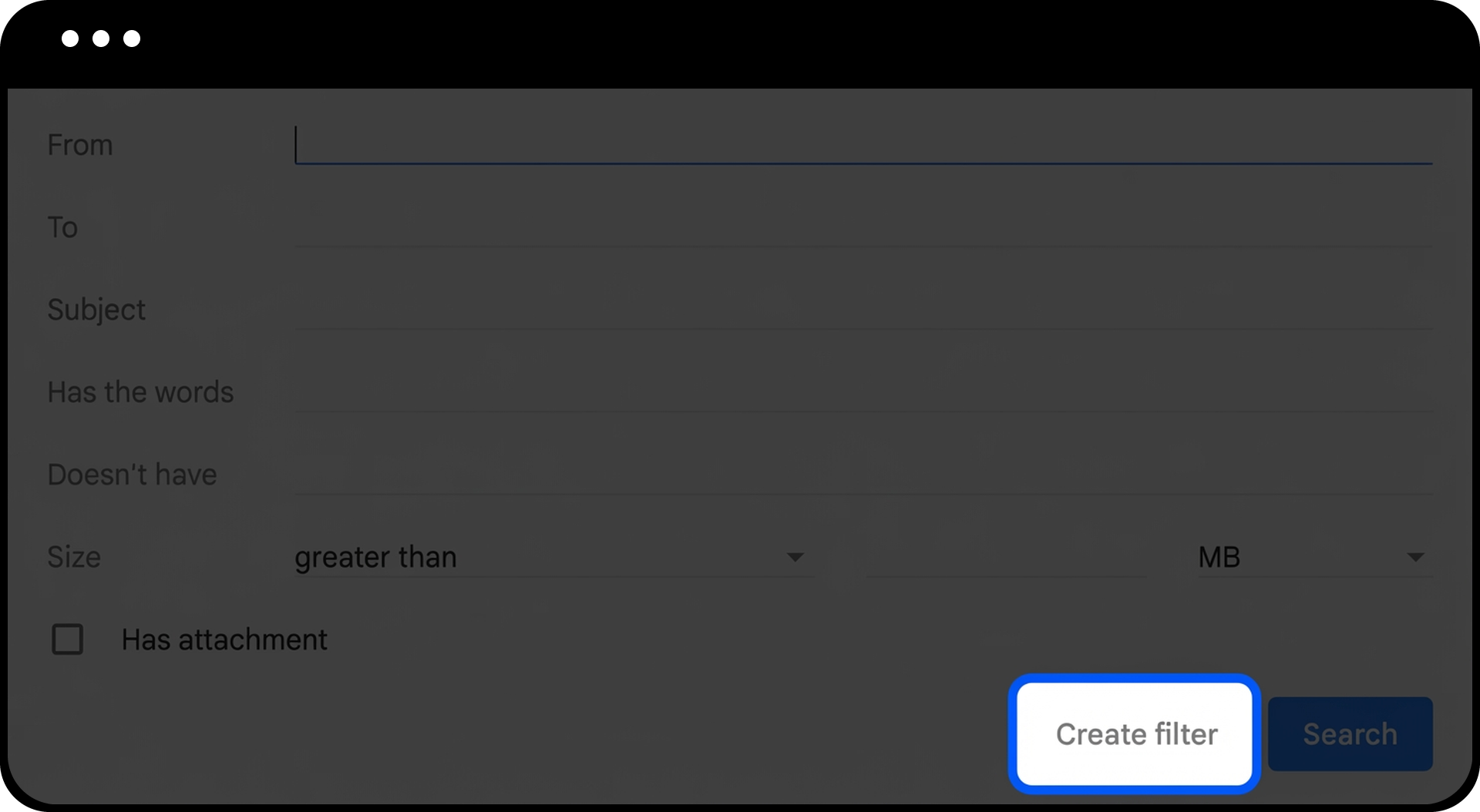
- Enter one of the Gate email addresses in the "From" field (e.g., support@promo.gate.com).
- Click "Create filter".
Step 5: Complete Whitelist Settings
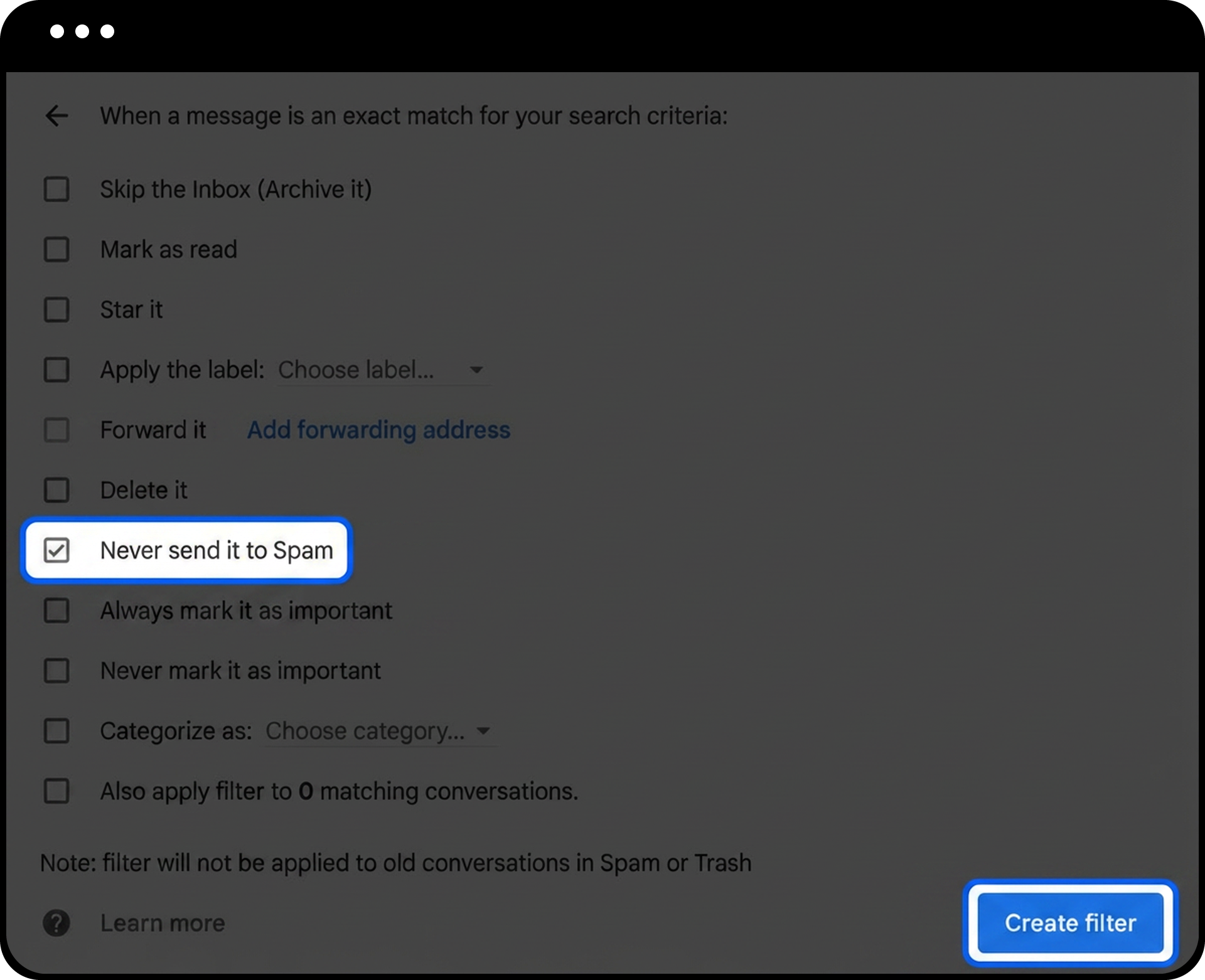
- Check the box for "Never send it to Spam".
- Click "Create filter" to save your whitelist settings.
Step 6: Repeat for Additional Addresses
Repeat Steps 3-5 for the remaining Gate email addresses:
- support@send.gate.com
- support@sending.gate.com
Notes
- Whitelisting Gate's official email addresses does not compromise your account security; it only ensures you receive important verification and notification emails.
- Email delivery may take a few minutes after whitelisting. If you still do not receive emails after 10 minutes, check your spam folder or contact customer support.
- Different email service providers have different whitelist setup processes. This guide uses Gmail as an example; for other email providers, please refer to their respective help documentation.
FAQ
Q1: I've whitelisted Gate's emails, but I still don't receive verification codes. What should I do?
A: First, check your spam or junk folder. If the issue persists, verify that you entered the correct email addresses in the whitelist. You may also try using an alternative email address or contact Gate customer support for assistance.
Q2: Do I need to whitelist all three Gate email addresses?
A: Yes, it is recommended to whitelist all three official Gate email addresses to ensure you receive all types of notifications and verification emails from the platform.
Q3: Will whitelisting these addresses affect my email security?
A: No, whitelisting only ensures that emails from these specific addresses are delivered to your inbox instead of being filtered as spam. These are Gate's verified official email addresses and will not compromise your email security.
Disclaimer
The content provided herein is for reference and educational purposes only and does not constitute any financial, investment, trading, or legal advice, nor does it constitute an offer or solicitation to buy or sell any digital assets. Gate makes no express or implied representations or warranties regarding the accuracy, completeness, or timeliness of the information contained herein. Product features, interfaces, rules, and fee structures may be updated or adjusted at any time. Please refer to the latest announcements and the actual information displayed on the Gate platform for the most accurate details.
Digital asset investments involve significant risk, and prices may fluctuate substantially. You may lose the entire amount of your investment. Please make decisions cautiously based on your own financial situation and risk tolerance after fully understanding the associated risks. If necessary, you are advised to consult an independent professional financial or legal advisor.
For more information about potential risks, please refer to Gate's Risk Disclosure and User Agreement.
